


Our Network


Coming Soon


Coming Later

Online PNG Logo Maker

Try our free online logo maker tools. You can create transparent logos, change their color, rotate them, convert them from the JPG format to the PNG format with transparent backgrounds, refine edges, and more!


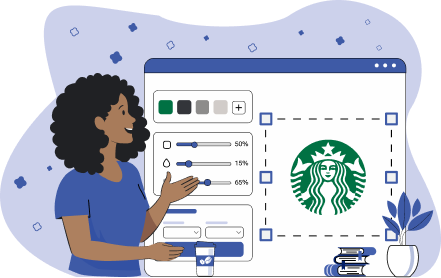
How to use Logo Tools?
Step 1

Click on a tool below & upload your logo

Step 2

Adjust settings

Step 3

Download a revised logo


Popular Logo Tools

Transparent Logo Maker

Transform PNG logo backgrounds from opaque to transparent. Remove a selected color with adjustable similarity, optional edge-only processing, smoothing, and live preview.

Change Logo Colors

Adjust PNG logo color & tone. Replace selected colors with adjustable similarity threshold, smoothing radius, and live replacement mask preview.

Crop a Logo

Delete unwanted space from PNG logos. Crop the image using rectangular or oval selection with adjustable position and support for multiple successive crops.

Resize a Logo

Select dimensions for PNG logos. Resize the image with configurable dimensions and optional aspect ratio preservation.

Rotate a Logo

Place PNG logos at any angle. Rotate the image around its center by a specified angle in degrees or radians.

Clean Logo Edges

Repair PNG logo rough edges. Remove color noise and smooth edge artifacts using adjustable cleanup depth and optional advanced processing algorithms.


All Logo Tools

Add Logo Background

Fill transparent PNG logo backgrounds with color. Replace transparency with a solid color or gradient fill, including linear or radial gradient options.
Center a Logo

Align PNG to the middle of its background. Center the image horizontally or vertically with optional reference to the current or new canvas size, pixel offset adjustment, and live preview.
Change Logo Background

Replace PNG logo background color. Replace selected colors using similarity threshold, smoothing radius, and live mask preview for accurate background swapping.
Clean Logo Edges

Repair PNG logo rough edges. Remove color noise and smooth edge artifacts using adjustable cleanup depth and optional advanced processing algorithms.

Remove Logo Background

Make transparent PNG logo background. Remove a selected color with adjustable similarity, optional edge-only removal, edge smoothing, and live preview of the removed area.

Add Outline to Logo

Apply border to a PNG logo. Add a configurable outline with adjustable thickness, color, smoothing, and unevenness for more natural edge rendering.

Create a Semi-transparent Logo

Make semi-transparent PNG logo watermark. Apply uniform alpha transparency to the entire image with adjustable opacity level.
Transparent Logo Maker

Transform PNG logo backgrounds from opaque to transparent. Remove a selected color with adjustable similarity, optional edge-only processing, smoothing, and live preview.

Change Logo Background

Replace PNG logo background color. Replace selected colors using similarity threshold, smoothing radius, and live mask preview for accurate background swapping.

Change Logo Colors

Adjust PNG logo color & tone. Replace selected colors with adjustable similarity threshold, smoothing radius, and live replacement mask preview.
Separate Logo Colors

Separate PNG logos into color layers. Split the image into multiple color-based layers with automatic or configurable color count and customizable layer arrangement in the output.

Find Logo Color Scheme

Extract PNG logo color palettes. Generate a visual and textual color palette with configurable color count, tone precision (average or exact), sorting options, and optional usage frequency display.
Pick Logo Color

Identify a PNG logo color HEX/RGB/CMYK code. Sample exact or averaged colors using adjustable radius and offset, with optional on-image annotation of selected colors in different formats.
Convert Logo to Grayscale

Make grayscale version of a color PNG logo. Convert colors to grayscale using preset or custom channel-weight formulas, with optional limitation on the number of gray levels.
Convert Logo to Single Color

Convert a multicolored PNG logo to one color. Replace all colors in the image with a single selected color and optionally set a background fill color.

Convert Logo to White Color

Convert image to a single-tone white logo. Transforms a PNG logo into a uniform white or near-white version by unifying all colors and optionally adjusting the background fill.
Convert Logo to Black Color

Convert image to black color logo. Recolors a PNG logo into a solid black or near-black version by collapsing all colors into a single tone and optionally setting the background fill color.
Blur Logo

Soften all or part of a PNG logo. Applies blur to a selected region of a PNG image using adjustable blur radius and configurable area defined by coordinates and size.

Brightness for Logos

Adjusts brightness of a selected logo image region by applying a percentage-based intensity change with configurable coordinates and area size.

Add Shadow to Logo

Add depth to PNG logos. Extends the image by adding a shadow effect with adjustable parameters such as offset, color, blur level, and shadow positioning controls.

Pixelate Logo

Add blocky filter to PNG logo. Applies an 8-bit style pixelation effect to a selected area of a PNG image using configurable pixel size and region defined by coordinates and dimensions.
Sepia Logo

Add golden filter to PNG logo. Applies a sepia tone to a selected image area with adjustable intensity, optional grayscale conversion, and configurable region size and position.
Sharpen Logo

Focus PNG logo. Enhances sharpness of a selected image region using adjustable intensity percentage and configurable coordinates and dimensions for the target area.
Convert a JPG Logo to a PNG Logo

Convert opaque JPG logo to transparent PNG. Removes the background and converts the image to PNG with transparency controls, including optional preservation of interior contour colors and preview.

Convert a PNG Logo to a JPG Logo

Convert transparent PNG logo to opaque JPG. Replaces transparency with a selected fill color and provides control over output quality percentage and transparency handling settings.
Convert a WebP Logo to a PNG Logo

Convert WebP logo to PNG for compatibility. Outputs PNG format from WebP images with optional transparency fill color handling to ensure consistent rendering across different environments.
Convert a PNG Logo to a WebP Logo

Convert PNG logo to WebP for small file size. Outputs WebP format from PNG logos with adjustable quality percentage to optimize compression and reduce file size.
Convert an SVG Logo to a PNG Logo

Convert SVG logo to universal PNG. Renders SVG logos into PNG format with optional fill color for transparent areas and configurable padding around the image.
Add Space Around Logo

Expand PNG logo white space. Adds adjustable padding around the image with configurable border thickness and color settings.
Crop a Logo

Delete unwanted space from PNG logos. Crop the image using rectangular or oval selection with adjustable position and support for multiple successive crops.

Remove Space Around Logo

Narrow PNG logo. Crops the image by removing outer margins based on specified cropping coordinates or edge boundaries.
Resize a Logo

Select dimensions for PNG logos. Resize the image with configurable dimensions and optional aspect ratio preservation.

Rotate a Logo

Place PNG logos at any angle. Rotate the image around its center by a specified angle in degrees or radians.
Add Text to Logo

Add label or custom text to PNG logo. Places user-defined text onto the image as a customizable label with control over positioning and appearance.
Create a Logo from Text

Create a PNG logo from text alone. Generates a logo by rendering the specified text with configurable font, size, color, and positioning parameters.


Frequently Asked Questions

Online Digital Logo Maker Tools help anyone to create, modify and edit professional-looking logos in PNG format. No downloads or installations are required. Just change the logo directly from the browser.

Make your PNG logo transparent, a different color, place it on an angle and more. Then, download in a single click or copy to your clipboard for great looking websites, social media, business cards and marketing materials.

Entrepreneurs, individuals, companies and other organizations rely on Online Digital Logo Maker Tools because they are easy to use and don’t require speciality software. Whether developing a new brand or product logo, or adjusting an existing one, our tools deliver professional results.

A PNG background is transparent. To overlay your logo onto your website, a transparent background is required. PNGs are lossless, meaning that they preserve image quality. They are also universally-supported by browsers, operating systems, design software and printing services.

The best shape for a logo is the one that communicates brand identity.

Circles often represent perfection and Starbucks, Mastercard and Nasa utilize them successfully. Squares often symbolize the reliability that the BBC, 7 Eleven and Adobe convey. Triangles look like arrows and the Reebok, Mitsubishi and Adidas logos point to growth. Visually appealing logos can be made from letters or numbers, figures, scenes and just about anything else. As long as the logo represents the brand, the sky’s the limit.

Apple’s apple, Coca-Cola’s script, FedEx’s hidden arrow, Google’s playful text, Home Depot’s stencil, McDonald’s golden arches, Nike’s swoosh, Spotify’s waveforms, Starbucks’ siren and Target’s circles are among the most recognizable logos in the world. Elegant in their simplicity, these logos define their brands well.

No. Online Digital Logo Maker Tools don't save your logo to our servers. Logo changes occur in your browser and can be stored on your computer or mobile device. Users enjoy 100% privacy.

Logos have to look good on a variety of backgrounds. For example, a PNG logo on a black background would not stand out in dark mode, but switch the background color to white, and the logo becomes much more visible. Whether you’re designing a style guide with approved logo formats or recoloring a logo to match your new website, the Change Logo Background tool has you covered.

A transparent PNG logo can be placed on top of another background, color or image where it will blend right in. Transparent logos are used for websites, marketing materials or any other project where a logo must adapt to existing art, such as printing. The Remove Logo Background tool automatically turns an opaque logo transparent.

Translucent, or partially see-through, logos are often used as watermarks. Watermarks may appear on digital images such as photos, graphic art, video or official documents to prevent copyright infringement or piracy. Watermarks can also serve as subtle branding and promotion. Or they may use it to connote luxury.

When a PNG image hasn’t been cut out or resized well, it can appear like it has jagged edges. To fix unruly pixels, use the Clean Logo Edges tool for a smooth, professional look.

It’s tough to use a PNG logo that wasn’t formatted correctly! If the logo is not centered in its background, there’s an easy fix: the Center Logo tool. Upload and the tool will make the logo symmetrical.

The short answer is: it depends.

First, consider your branding and logo design. Then decide if you want a single or multicolor logo and whether your choice will be versatile enough to work on a website, video, or marketing materials and other formats.

Finally, don’t forget to consider the language of color and its meanings. For example, Browserling’s logo utilizes blue, which is often associated with technology and trustworthiness, and red, which is related to energy and excitement. It’s just right for us.

A law firm might use grayscale to convey professionalism. A luxury brand may use grayscale to imply sophistication. Grayscale is also appropriate for a minimalist look. Use the Grayscale Logo tool to visualize a colored logo in a new way.

Advanced PNG image editing gets a lot easier with the Color Layers for Logos tool. Separate color layers in a few clicks and adjust the brightness, contrast and saturation of each color channel without affecting the others

Consider simplifying your PNG logo to one color. It’s professional, makes your brand appear more focused and won’t distract from the message. Use the Find Logo Color tool to identify the hex/RGB/CMYK code of your chosen color and convert your multicolored logo to a single hue.

Easy! The Extract Logo Palette tool will provide a hex/RGB/CMYK code for each color in your PNG logo. Then, use your graphic design software’s picker to find complementary shades.

Adjust the image contrast using the Brightness for Logos tool. Saturated and bright colors make a logo that doesn’t blend into the background. Lightening an image can make it more readable as well.

The Pixelate Logo tool can give your logo a nostalgic 8- or 16-bit style which is especially great for a brand focused on tech or gaming. Or if you prefer something less technology-inspired, try the Sepia Logo tool which adds a golden filter to a PNG logo.

Try the Drop Shadows for Logos tool. It overlays a shadow filter on a logo, giving your 2D image the appearance of a 3D image. It’s an easy way to add dimension and depth.

Precision is important in reproducing a logo. A blurry logo would not be professional or good for branding. Print requires high-definition images and sharpening ensures that your image will remain crisp and clear when printed at a high resolution.

The blur filter generates the visual effect of movement. Make all or part of your PNG logo out-of-focus and it will look like you’re going places!

Each file format, such as PNG or JPG is best for one application, like loading quickly or large format printing. Online PNG Logo Maker tools make it easy to transfer one format to another.

Google developed the WebP format to give users the best of both worlds – excellent quality with a smaller file size that loads more quickly. As a result, WebP as a file format, is gaining popularity and widespread usage. Use the PNG to WebP Logo tool to see what the excitement is all about.

What if you need a transparent logo to blend into existing art, but all you have is a JPG that sits on top of it? Easy. With a few clicks, turn an opaque background into a transparent one by changing the file format from JPG to PNG.

SVG and PNG file formats are very different. An SVG is a vector format, meaning it can scale up indefinitely. PNGs use pixels instead. SVGs are often used for slightly lower-resolution applications, like illustrations. PNGs are used for high-resolution images. SVGs aren’t supported in every browser but PNGs are.

Cropping deletes the extra space around a logo and essentially zooms in to create a larger image. This limits distractions and helps to create a stronger visual impact. An added bonus is that cropping makes a smaller file size!

Among other factors, Search Engine Optimization evaluates how quickly a website loads. Smaller files are the key to speed and resizing can positively affect your SEO. And there isn’t a website online that couldn’t benefit from a higher SEO ranking.

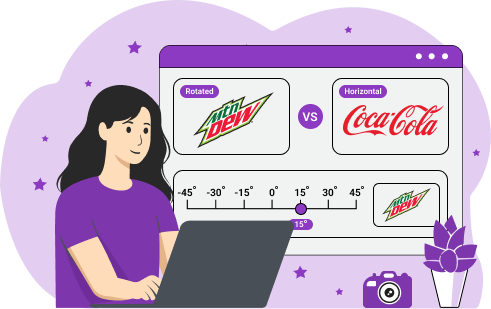
Brands may choose to put their logo on an angle to create eye-catching design. Compare the Mountain Dew logo which tilts up and the traditional horizontal text of the Coca-Cola logo. Which appears more dynamic? Use the Rotate Logo tool to find the perfect angle.

PNGs are high-resolution images and resizing or downsizing them does not affect their resolution. Additionally, a smaller PNG logo may result in a smaller file size, which is key to some applications, as well as its performance. Use the Resize Logo tool to choose the best dimensions for your application.

Is it readable on its current background? Does it feel crowded or cluttered in its position? Does it align with existing margins? If the answer to any of the above questions is “no”, consider using the Add Space to Logo tool.

Text logos are clean, simple and clear, and easily adapt to multiple uses.

For readability and to convey extra information. For example, if a company’s logo isn’t globally recognized, they may opt to label it with their name. Easily add type to a logo for branding purposes with the Add Text to Logo tool.

Select a clear, legible font in keeping with the style of the PNG logo. Overlay a sans-serif font for a modern image and a serif font for a classic design. Next, choose a point size that will stand out for legibility. Finally, adjust the text’s position, whether top, center or bottom-aligned. Choose the best options for your image with the Add Text to Logo tool.

Designers may spend as much time on a type treatment as a logo icon because simple design requires a lot of work! But not for Online PNG Tools users. The Logo from Text tool immediately generates a logo image from text alone. Try a few iterations to find the logo that works for you.

The right color depends on usage. Consider high-contrast, bold colors for emphasis. Pastel colors are often used to generate a clean, minimalist look. Some colors work especially well on a PNG logo transparent background, such as black and white. Find the ideal color for your logo with the Logo from Text tool.


Use cases

Small Store Owner

Etsy entrepreneurs may not know that they need transparent PNG logos for their web pages, packaging and printing. They are often unable to hire professional logo designers and may rely on amateurs who are unaware of logo formats. Etsy competition is fierce and an aesthetically-pleasing presentation is important. Using the Remove Logo Background tool, the owner can simply upload their existing PNG logo, easily make the background transparent and download it for use online or with suppliers.

Developer Hack

The correct file format makes all the difference in how a web page functions. Website developers choose the best formats for their purposes, which may require transferring one kind of logo file to another. For example, devs can convert a WebP to a PNG Logo tool instantaneously and get right back to coding.

Startup Support

Startups need logos but producing one is not a founder’s most important task. Nevertheless, a professional logo is necessary for a company’s image. Text logos are simple, memorable and descriptive, with the proper font. Using the Logo from Text tool, even a CEO can make a PNG text logo in a few minutes, download it and use it on a website, fundraising deck or email footer.

Rebrand Research

PR and marketing departments run on deadlines and creativity, especially when a re-brand is on the horizon. Using the Find Logo Color Scheme, a designer is instantly able to extract all the colors in the sample designs she is researching, analyze and test them by using the Change Logo Color tool. Brainstorming goes more quickly when complicated software is not required.

Email Newsletters

A company’s communications should appear professional but unfortunately, not everyone who uses graphics fully understands how they work. Blowing up a logo to fit a newsletter layout may cause it to appear ragged around the edges, which does not reflect well on the company or the employee. Newsletter makers can easily use the Clean Logo Edges tool to fix pixels and make edges smooth.


Our Users and Customers

Browserling and our online tools are used by millions of users every month, and our customers include governments, states, cities, banks, stock exchanges, universities, newspapers, Forbes 100, Forbes 500 companies, and private multi-billion dollar companies.


If you like our tools, please consider getting a premium plan.

Premium Plan

  • Commercial use allowed
  • No ads (ad-free!)
  • Unlimited uses per day
  • Combine multiple tools together
  • Instant download
  • Single user license

Subscribe!

Subscribe to our updates. We'll let you know when we release new tools and features, and when we organize online workshops.

Enter your email here


Feedback. We'd love to hear from you! 👋

Created with love by

We're Browserling — a friendly and fun cross-browser testing company powered by alien technology. At Browserling we love to make people's lives easier, so we created this collection of online PNG tools. We created the simplest possible user interface for our tools and they are now used by millions of users every month. Behind the scenes, our online PNG tools are actually powered by our web developer tools that we created over the last couple of years. Check them out!

49K
@browserling

All Tools